Core Features
How to add staff and drivers
Add a team member with (or without) a login, and set their role.
Steps
- Go to 🧑💼 Staff.
- Click + Add Staff (top right of the Staff Accounts page).
- Enter Full Name and Phone / Contact.
- Choose a role from the dropdown: 👤 Trip-Only (no login) (default), 🗂️ Staff, 🚐 Driver, or — admins only — 📋 Manager (can approve).
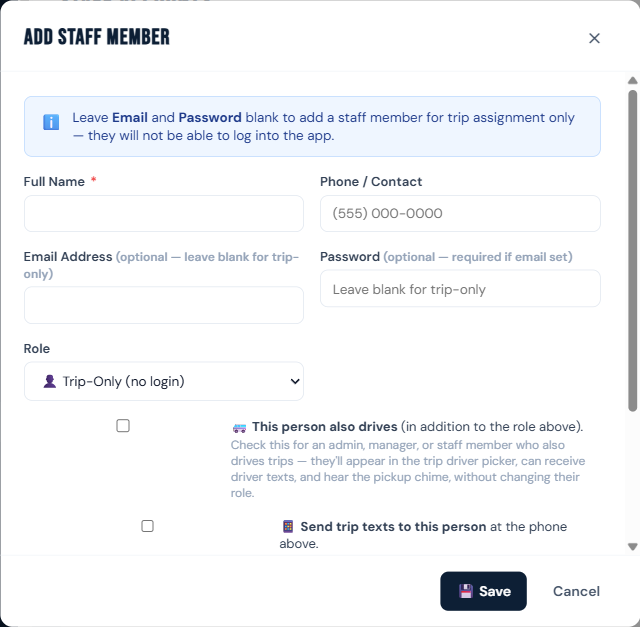
- If the role isn't Trip-Only, enter an Email Address and a Password (both required together — leave both blank for trip-only).
- Optionally check:
- 🤝 Not a facility employee — for an outside aide who rides along and tends whoever comes from their care area. Ticking this switches the role to Trip-Only (outside aides never get a login) and reveals an Agency / Employer field. See Aides and companions. An aide who attends one particular resident belongs on that resident's record instead.
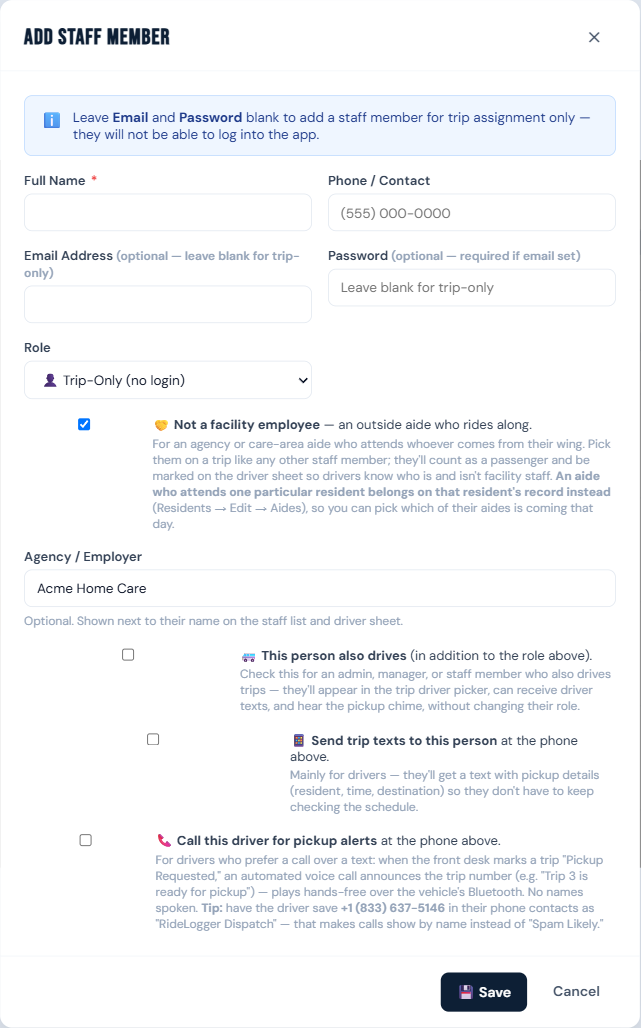
- 🚐 This person also drives (in addition to the role above) — see Also drives.
- 📱 Send trip texts to this person at the phone above — needed before "Text Driver" will reach them; see Turn on text reminders.
- 📞 Call this driver for pickup alerts at the phone above — the opt-in voice call described in The pickup chime and voice alerts.
- Click 💾 Save.
Who can do this
Managers and admins. Managers can only create/edit staff, driver, and trip-only accounts — the Manager role option in the dropdown only appears for admins. Neither managers nor admins can create or promote someone to Admin/Facility Admin from this screen — those roles are only provisioned at facility signup or by the super admin.
Notes
- Trip-Only staff have no login at all — they exist only to appear in the "Staff on Trip" picker when scheduling. Outside aides are a labelled kind of Trip-Only entry: they show as 🤝 Outside Aide on this page and as (Aide — Agency) in the trip picker, and they're marked (aide) on the driver sheet so drivers can tell them from facility staff.
- Use Deactivate for someone who's left, and Delete Staff only if you're sure you want the account gone.
- You can reset someone's password from the same Edit screen without deleting the account.