Core Features
How to add a resident
Add a resident so they can be scheduled for trips. RideLogger stores a first name and last initial only by design — not a full last name.
Steps
- Click 👥 Residents in the sidebar (not shown to the Driver role).
- Click + Add Resident (top right of the Residents page).
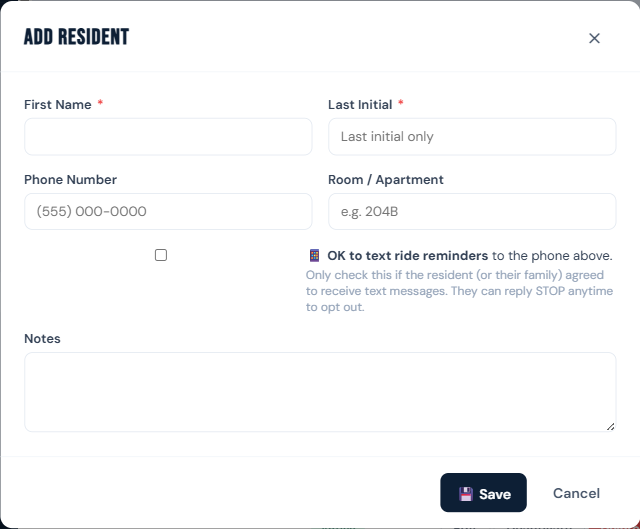
- Enter first name, last initial, phone, room, and any notes.
- Check "📱 OK to text ride reminders" only if the resident (or their family) agreed to receive texts — they can reply STOP anytime to opt out.
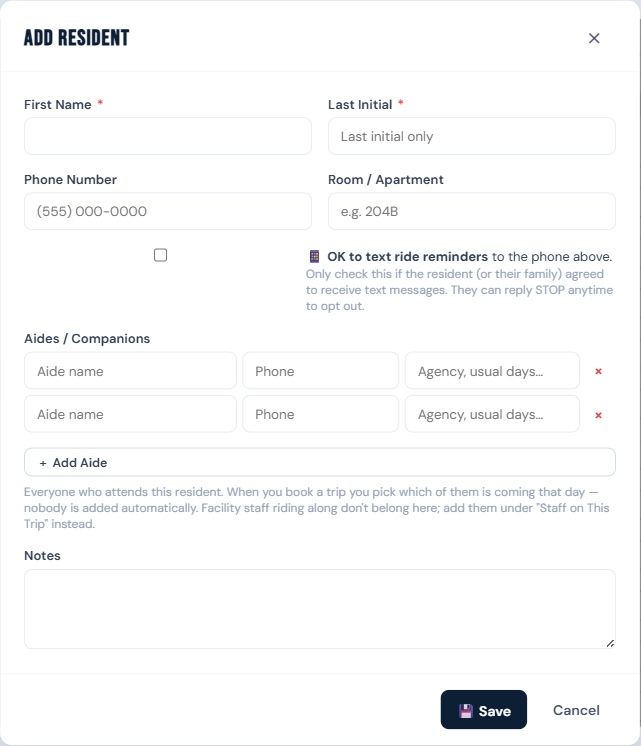
- Under Aides / Companions, click + Add Aide for each aide who attends this resident — name, phone, and an optional note for the agency or the days they usually come. Add as many as they have; you choose which one is coming when you book each trip. See Aides and companions.
- Leave the resident marked Active (the default) and click 💾 Save.
Who can do this
Staff, drivers, managers, and admins.
Notes
- Use Deactivate (not delete) for a resident who's simply moved out — this preserves their trip history. Delete is blocked entirely if the resident has upcoming trips; see Can't delete a resident or destination.
- Adding many residents at once? See Import residents from a spreadsheet.