Core Features
How to import residents from a spreadsheet (CSV)
Bring your resident list in from Excel or Google Sheets instead of typing each one in by hand.
Steps
- Go to 👥 Residents.
- If you don't already have a spreadsheet in the right shape, click 📄 Template to download a blank CSV with the correct columns:
First Name, Last Initial, Phone, Room, Notes, Status. The same row of buttons has 📤 Export CSV, 📥 Import CSV, and 📄 Template, next to + Add Resident. - Fill in your spreadsheet and save it as CSV.
- Click 📥 Import CSV and choose your file.
- Review the "📥 Import Residents — Preview" screen — it shows how many residents were found and marks each New, and lets you check the data before anything is saved.
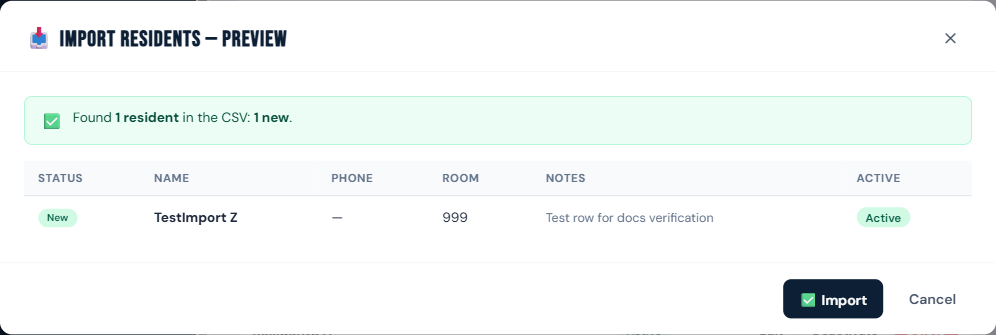
- Click ✅ Import to confirm, or Cancel to back out without changing anything.
Who can do this
Staff, drivers, managers, and admins.
Notes
- The importer matches columns flexibly by header name — it doesn't require your columns in an exact order, but it does require a "First Name" and "Last Initial" column to proceed; other columns are optional.
- If the file has no data rows, or can't be parsed as CSV, you'll get an error toast naming the problem instead of a silent failure.
- You can also Export your current resident list to CSV at any time from the same page.