Core Features
How to text a resident or driver about a trip
Send the resident their ride details, or send the driver the pickup details, straight from the trip.
Steps
- Open the trip detail modal — the footer shows whichever text buttons currently apply to this trip (see the "📱 Text Driver" button in the footer here, next to Print Receipt):
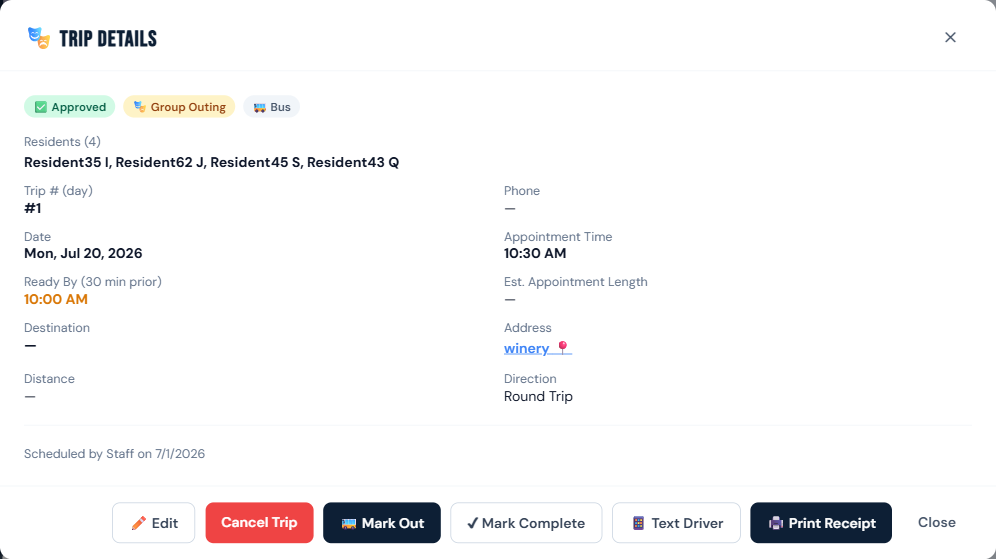
- Click 📱 Text Resident (only shown when the resident has consent + a phone on file) to send them their date/time, destination, and ready-by time.
- Click 📱 Text Driver (only shown when at least one opted-in driver is available) to send the assigned driver the pickup details.
- If no driver is assigned to the trip yet, or more than one opted-in driver could receive it, a "📱 Text which driver?" picker (checkboxes, one row per opted-in driver with name and phone) lets you choose which driver(s) to text before clicking 📱 Send.
- A confirmation toast appears once sent.
Who can do this
All roles.
Notes
- Text Resident requires the resident's "OK to text ride reminders" consent — it won't send otherwise.
- Text Driver only shows if the facility has at least one driver opted in to texts. If none are opted in, you'll see: "No driver has opted in to texts yet. On a driver's staff record, add a mobile number and check 'Send trip texts to this person'."
- See Turn on text reminders to set up consent first.