Core Features
How to mark a trip out, request pickup, and mark it returned
Track a trip through the day without live GPS — just simple status buttons the front desk and driver both see.
Steps
- Open an approved trip — the footer shows 🚌 Mark Out.
- Click 🚌 Mark Out when the vehicle leaves with the resident. The trip badge changes to 🚌 Out, and the footer now shows 🙋 Pickup Requested, ✅ Returned, and ↩ Undo Mark Out.
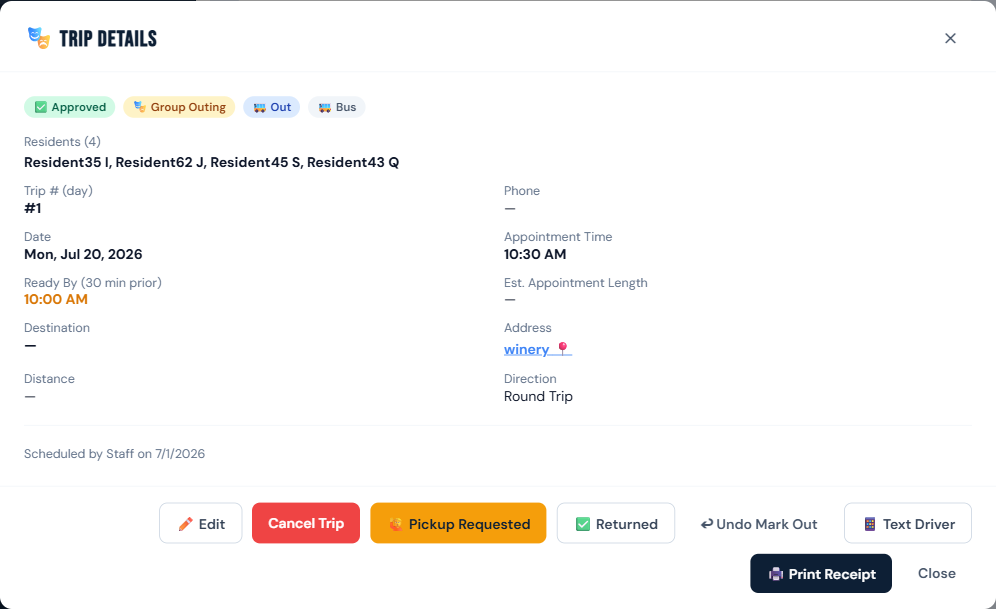
- Click 🙋 Pickup Requested when it's time for the driver to head back for pickup. This is what triggers the driver's pickup chime and/or automated voice call — see The pickup chime and voice alerts.
- Click ✅ Returned when the trip is finished.
- Clicked the wrong button? Use ↩ Undo Mark Out / ↩ Undo Pickup Request to step back.
Who can do this
All roles, on an approved trip.
Notes
- This is status tracking only — there's no live vehicle location, just what staff click.
- The pickup chime/call only fires for the assigned driver, or a staff member flagged "also drives," and only while their device has the app open (chime) or they've opted in (voice call).