Core Features
How to print a driver sheet
Print a clean, landscape-ready sheet the driver can take with them — pickup times, destinations, and notes for the day.
Steps
- Click 🖨️ Print Driver Sheet in the sidebar.
- Pick a date (defaults to today) and click Load to preview — it lists every trip for that date grouped with the day's driver schedule, no separate vehicle/driver prompt.
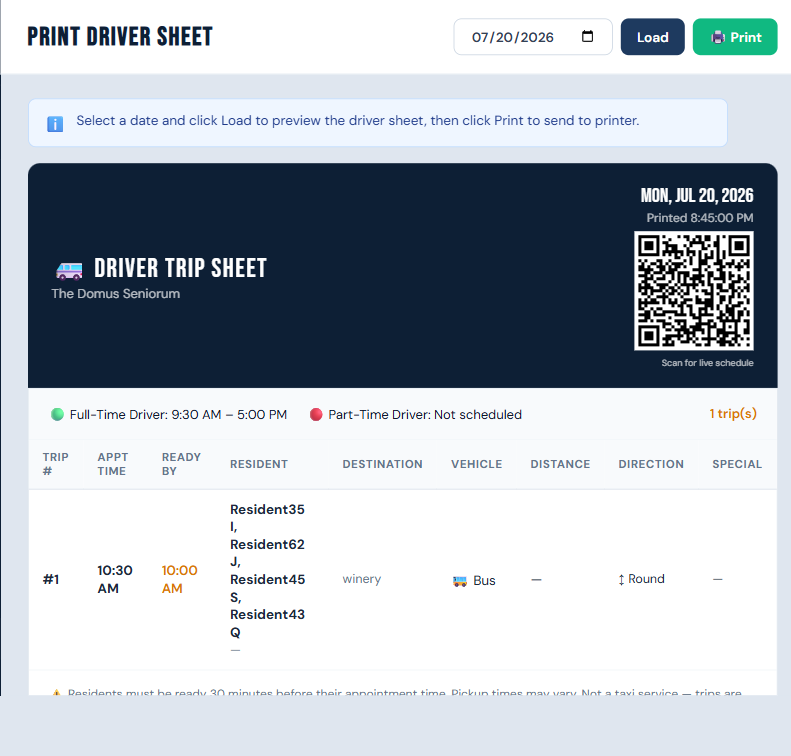
- Click 🖨️ Print — a print-ready window opens, defaulted to landscape orientation, and your browser's print dialog opens automatically (the page calls print on load — it isn't a separate click).
- Use that print dialog to print or save as PDF.
Who can do this
All roles.
Notes
- On the Pro plan, driver sheets include a "Scan for live schedule" QR code (and trip receipts get a QR too — see Resident QR portal).
- The on-screen preview is intentionally wide (not phone-width) since it's meant to be printed, not read on a small screen.
- A separate Trip Receipt (single trip, from the trip detail modal) is also available if you just need one trip's paperwork rather than the whole day's sheet.