Core Features
How to import destinations from a spreadsheet (CSV)
Load your regular destinations (clinics, pharmacies, shopping centers) in bulk instead of adding them one at a time.
Steps
- Go to 📍 Destinations.
- Click 📄 Template to download a blank CSV with the correct columns:
Name, Category, Address, Distance (miles), Drive Time (min), Notes, Status. - Fill in your spreadsheet (Name and Address are required; the rest are optional) and save as CSV.
- Click 📥 Import CSV and choose your file.
- Review the "📥 Import Destinations — Preview" screen — it shows how many destinations were found, and marks each row New or (if it matches an existing destination) an update.
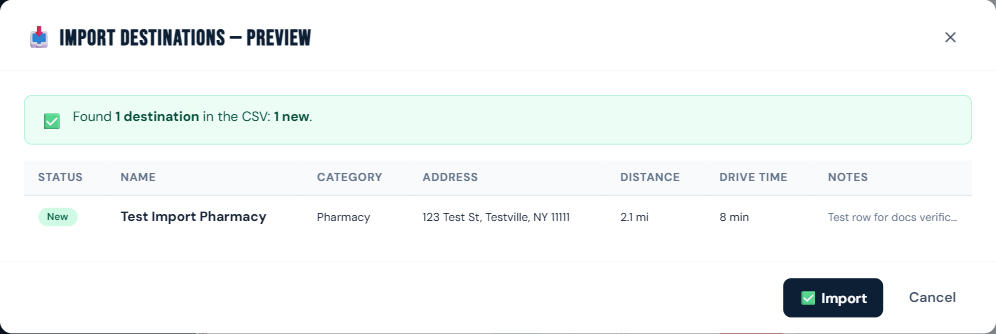
- Click ✅ Import to confirm, or Cancel to back out without changing anything.
Who can do this
All roles.
Notes
- The importer requires a "Name" and an "Address" column; other columns are optional and matched flexibly by header name.
- Category text is auto-normalized to one of RideLogger's fixed categories (Doctor/Medical, Shopping/Errands, Pharmacy, Grocery, Restaurant/Dining, Hair/Salon, Bank/Finance, Worship/Religious, Senior Center, Recreation/Outing, Other) by matching keywords — e.g. "CVS" or "Walgreens" becomes Pharmacy, "Walmart" or "Target" becomes Shopping / Errands. Anything unrecognized becomes Other. This only applies to CSV import — the Add Destination form uses a fixed dropdown instead.
- Leaving Distance/Drive Time blank is fine — use ⚡ Auto-calculate later, or let it fill in from the first trip scheduled to that destination.
- Export your current destination list to CSV any time from the same page.