Core Features
How to set driver schedules and see availability
Tell RideLogger which days/hours your drivers work so the Dashboard can show who's available today, and so trip conflicts can flag an unscheduled driver.
Steps
- Go to ⚙️ Settings and scroll to 🕐 Driver Schedules.
- Set the Full-Time and/or Part-Time driver's Start Time/End Time and Working Days checkboxes (Mon–Sun).
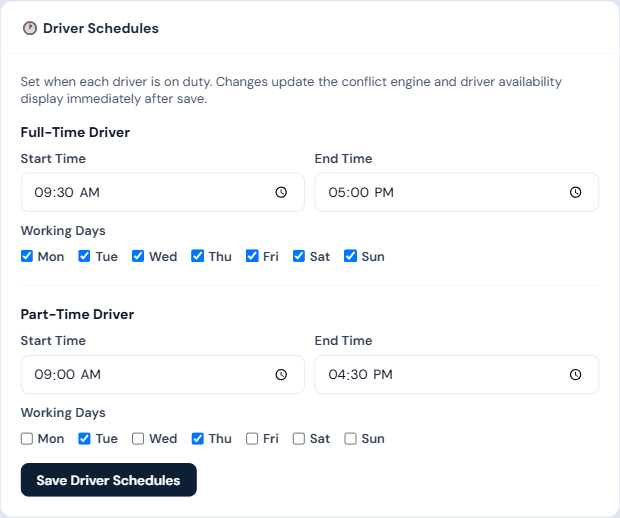
- Click Save Driver Schedules.
- To mark a driver unavailable for a specific date (sick day, PTO), scroll to 👤 Driver Availability Overrides, choose the driver, reason, start date (and end date if it's more than one day), and click + Add Override.
- Someone else driving that day? In the same section, use the "+ Add Coverage" form: pick who's covering (staff appear here if their role is Driver or their record has "🚐 This person also drives" checked), the date(s), and an optional note. Coverage counts toward availability — so a sick-day override plus a coverage entry correctly shows one driver available instead of "No drivers available."
- Check the Dashboard's Driver Availability Today card to see who's on today — scheduled drivers show 🔴 "Out today" with the reason when overridden, and anyone covering appears as an extra 🟢 row. Coverage also appears on the printed driver sheet's header.
Who can do this
Managers and admins (setting schedules); all roles can view Dashboard availability.
Notes
- Until a driver schedule is set up, the Dashboard prompts to "Add your drivers and their days/hours in Settings → Driver Schedules" instead of showing a default (and misleading) availability.
- Overrides reduce the day's count without deleting the underlying weekly schedule — useful for one-off absences; coverage entries add to it the same way.